How to: Create a List for Monitoring Instances with Alerts
This article explains how to create a list that shows instances that have an alert symbol.
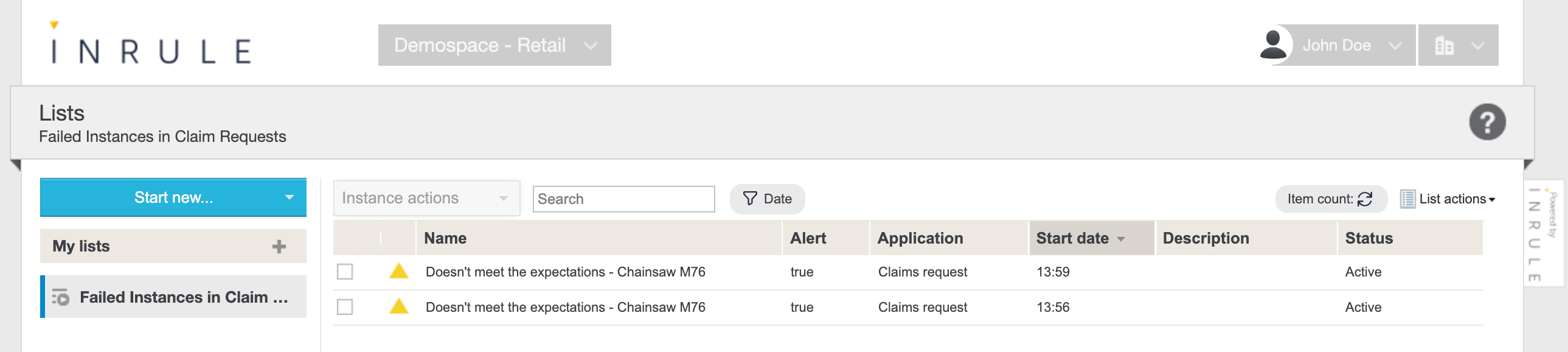
Create a List to Monitor Failed Instances
-
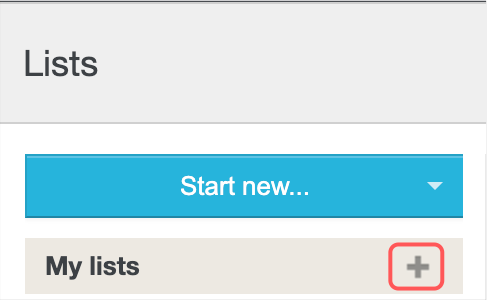
Start by creating a new list. Next to My Lists, click on the plus sign + to create a new list.
-
Name the List so it is easy to see this list is for monitoring failed instances.

-
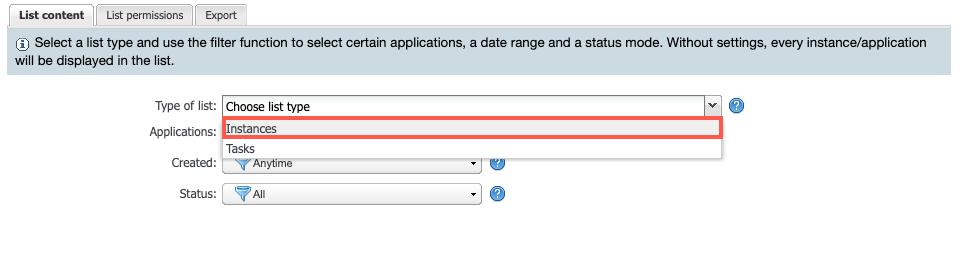
For the Type of list select Instances.
-
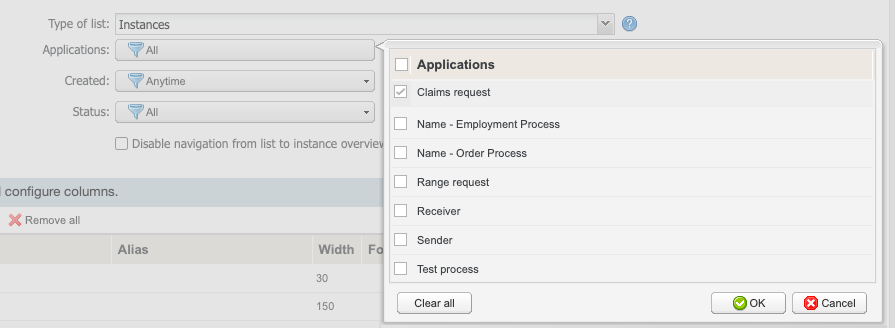
Select the application for which you want to view the failed instances.
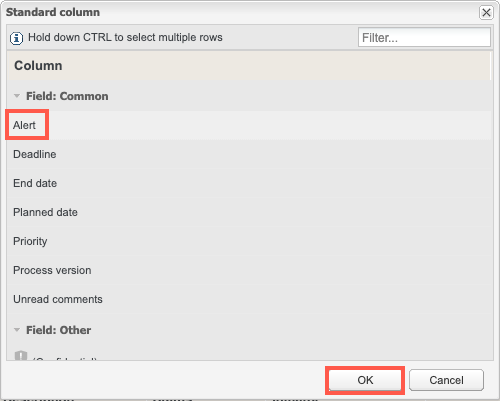
5. Select **Add column** and choose **Standard column**...

-
Select Alert and click on OK.
-
Find the Alert column in the column configuration area and click on the green add filter icon.

-
Select Yes from the Value drop-down menu and select OK.

-
Make any other changes you would like to make to the list and select Save.

-
Your list will show the failed instances from your application.